
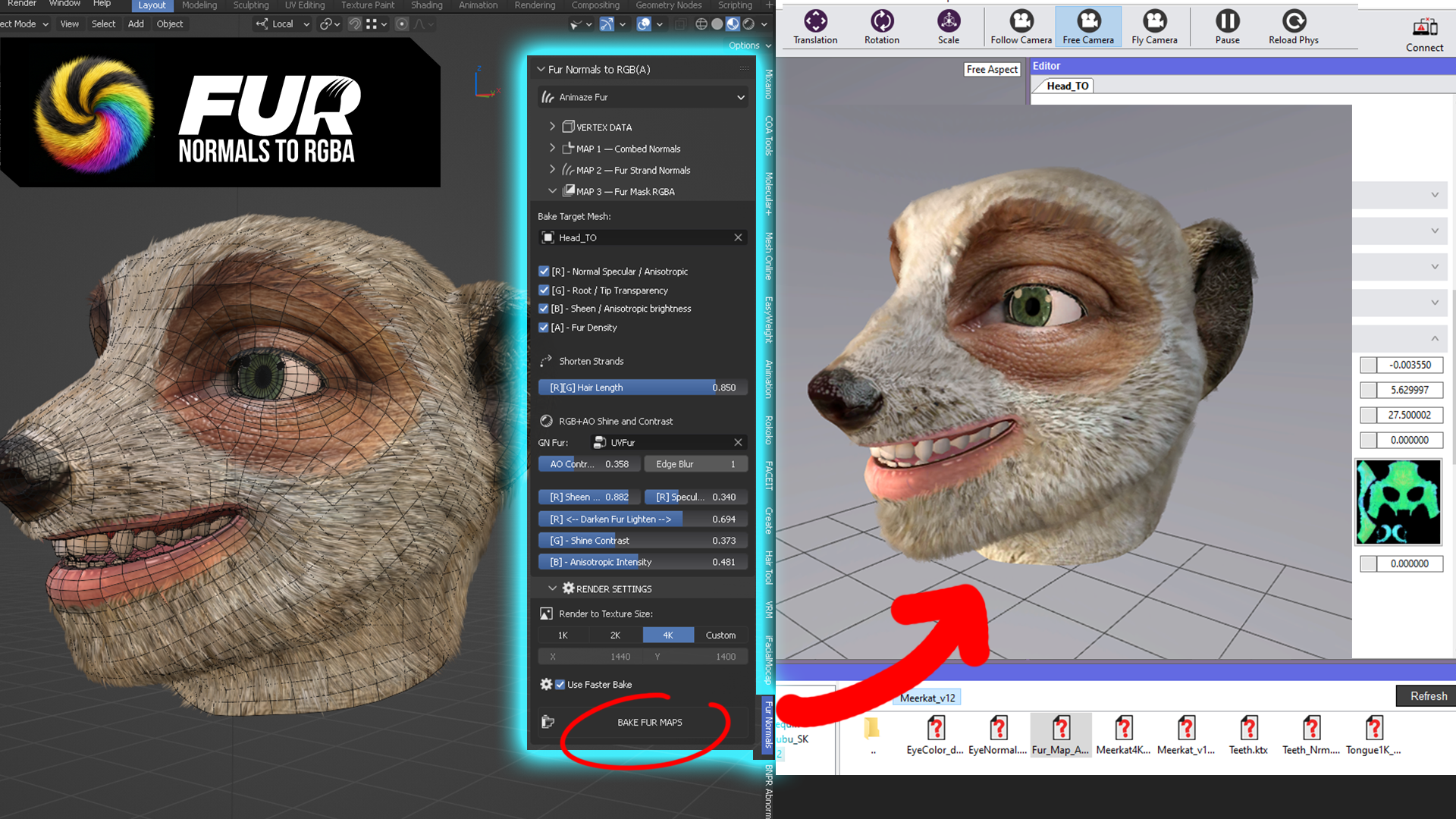
Bake Geometry Nodes Fur with 1 button
High-Performance Fur Baking Pipeline for Animaze, Unity, and Unreal Engine By Pierre Schiller | 3dcinetv.com
🟢The addon is available: Gumroad | Artstation | SuperHiveMarket


1. Addon Overview
The Fur Normals to RGB(A) addon for Blender (4.3–4.5) streamlines the conversion of complex Geometry Nodes (GN) Hair Curves into optimized, game-ready texture maps and vertex data. Groom your short fur hair, and click “Bake Fur Maps”, immediately packing the necessary channels for Animaze’s Avatar Fur shader compatibility, as well as texture strand look for animals, insects, tight coat fur, without the problems of setting up the baker, switching to cycles, setting up lights, and setting additional properties. The addon resolves all of this with just 1 button.
This is ANIMAZE official guide for Fur preparation and requirements (uses XGen for Maya).
Our tool: Fur to Normals RGBA, uses BLENDER completely.
Texture Output Specifications
- MAP 1: RGB Vertex Normals (Studio Version)
- Data: Combed strand normals baked to UV space.
- Format: Lavender Normal Map (Non-Color, Float32).
- MAP 2: Fur Normals
- Data: Per-strand filament normals rendered via EEVEE.
- Format: Vivid RGB Matcap-encoded (Non-Color, Float32).
- MAP 3: FurMap Animaze (Channel Packed)
- R: Specular / Anisotropic Mix
- G: Root / Tip Transparency
- B: Anisotropic Sheen Intensity
- A: Ambient Occlusion (AO)
2. Pre-Production Requirements
To ensure a successful bake, verify your asset hierarchy:
- Rigging: The base mesh must be rigged before adding GN Fur.
- Hair Curves: Add curves after rigging. Set Render Mode to Strip (Render Properties > Curves > Strip).
- UV Mapping: Use “peltery-style” (organic top-down view) unwrapping for optimal texture density.
- Materials: Ensure the mesh material is correctly assigned to the Hair Curves object.
3. The Professional Workflow
Phase 1: Scene Setup & Initialization
- Mesh Preparation: Maintain two meshes: Original (with GN Fur) and Duplicate (no GN Fur, used for combed normal data).
- Visibility: Ensure the source mesh (FROM), target mesh (TO), and Fur are all visible in the viewport before initiating any bake.
- Initial Write: Select the Duplicate (FROM) and Export Mesh (TO). Click Write Bent Normals.
Phase 2: Alpha Masking & Refinement
- Initialize: Click Write Fur RGB(A) with the Vertex Alpha checkbox Checked.
- Manual Masking: 1. Untick Vertex Alpha. 2. Select the Head mesh and enter Vertex Paint mode. 3. Use the Alpha Erase brush (Opacity 1.0) to mask out no-fur zones (eyes, nose, lips).
- Grayscale Painting: For transitions, use Alpha Erase at 0.5 Opacity. Avoid multiple strokes on the same spot to prevent “alpha multiplication” holes.
- Smoothing: Use Auto Radius, Smooth Passes, and Fur Falloff.
- Locking: Once masking is complete, click LOCK VERTEX DATA. This protects your manual paint from being overwritten by subsequent smoothing passes.
Phase 3: Texture Generation
- Bake Map 1: Click Bake Combed Normals →
RGB_VertexNormals. - Bake Map 2: Click Write Fur Normals →
Fur_Normals. - Bake Map 3: Adjust sliders for AO, Sheen, and Anisotropy.
- Click Bake Fur Maps →
FurMap_Animaze. - Final Export: Delete the
UVFurGN modifier and export to FBX.
4. Troubleshooting & Reset Protocols
- The “Nuke” Option: If the Vertex Alpha map becomes corrupted or requires a full restart, re-tick Vertex Alpha and click Write Fur to RGB(A). This resets the map to the default GN attributes.
- Render Optimization: * Fast Render (Checked): Bakes typically finish under 60 seconds.
- Fast Render (Unchecked): Uses your active EEVEE render settings for maximum quality.
- Resolution: Start bakes at 1K/2K for testing. Final production bakes should be 4K (Always maintain square aspect ratios).
Pro Tip: Always save a
.blendincrement before performing LOCK VERTEX DATA to ensure you have a fallback point for manual vertex paint adjustments.

The free version limits renders to 1K and the Vertex Data modules. The free version is available for Students and you can try before you buy here>>
As always, if you have any questions, I’ll be happy to reply in the comment section below. Thanks!
⚙ Pierre.
